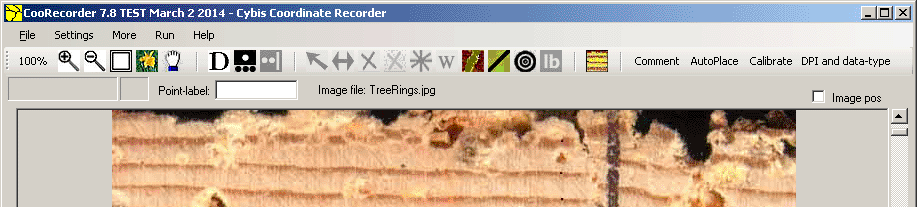
The CooRecorder program is used for registration of coordinates collected from images.
|
You can use your scanner to scan not only photos but also anything that can be placed on top of your scanner.
An image scanned as from a photo from such a thing can then be displayed on your computer screen.
You can enlarge the image to see interesting details and you
can write down coordinates of these details. It is a very tedious task to do this very manual
registration if you have an interest in lots of data for later statistical analysis.
Our CooRecorder program solves the problem by letting you just click on interesting points in your image. The coordinates of these points are then automatically written onto a file which you can later analyze with another program. When do I use the program?Breeding for better bees. For bee keeping it is a matter of measuring characteristic data from bee wings. This data may tell if the wings came from bees of a pure breed or from a mixed up breed or from some special breed. Mixed up bees are often angry. A bee keeper tries to avoid having angry bees, because they annoy his neighbours and he gets stung by them. Identifying a breed is also a matter of breeding for a lot of other qualities than just non-aggressiveness. Dating old houses and other constructions of wood. For dendrochronological data it is a matter of measuring the width of tree rings. A long sequence of such widths from a tree sample can be used to find out which year the tree was cut. I.e. to find out when an old house was probably built. |
Working procedure when using CooRecorder
Working procedure when using CooRecorder

When the file is loaded, a new window comes up.

Sorted data for dendrochronological measuring of yearly tree ring width.
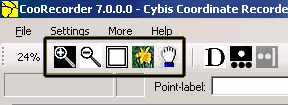
There are five buttons (and two scrollbars) to control the view of the image:
|
A magnifying glass, a demagnifying glass, a fit on screen button, an actual pixels button and a
hand tool button (for dragging the image over your screen).
The scroll bars are only shown when the image does not fit on the screen.
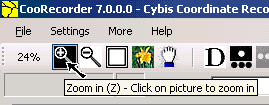
To the left of the magnifying glass is a percentage indicator showing the current magnification of your image. 100% means that one pixel in your image is shown as one pixel on your screen. The magnification glass is a "zoom in" button. First click on the button. Then click on the appropriate
point in your image. The view will zoom in an extra 50%. Click again to zoom more. You can set the magnification as a percentage number
if you click in the field to the left of the magnification glass.
Click on the demagnifying glass to zoom out of the image.
To drag the image over the screen, first click on the hand tool button (or press the H key). Then click on a point in the image and keep the mouse button pressed down. Then move (drag) the mouse with the button still pressed. (The hand tool is only enabled when the image is magnified so it does not fit on the screen.) |
RecordingExample: Coordinates measured from two bee wings.
When registering coordinates from a tree sample, there is (normally) only one coordinate pair
to register for each ring border. The registered coordinates are written to rows in a file like this:
|

(You may also press the D key on your keyboard.)
Recording modes
|
There are basically two recording modes in CooRecorder:
If you are using the data group mode you have to click the End of data group button before you start recording the next group of coordinate pairs:
If necessary, you may switch between these two modes while recording.
For fast switching, you can click the right button on your mouse to do this.
|
 One coordinate pair for each written row of data to the file or
 a group of coordinate pairs for each written row of data to the file (data group mode):

|
Start recording by clicking on points on your image.
The recorded points will be marked with plus signs.
This is an example of measuring dendrochronological data where the coordinates will be written
as one point per row (i.e. one coordinate pair per data row in the file)
Note: When using CooRecorder to measure dendrochronological data, measurement should start at the outermost ring of the tree and continue towards the inner part of the tree! (Please do not try to do it the other way, because that will make CDendro sort your rings with your oldest ring handled as your youngest ring.) Note:Below the magnifying glass tool, there is a small frame showing current coordinates in millimetres. The number of decimals shown are the same as the number of decimals written to the rows of the data file. This can be changed through the menu command Settings/Other settings. |
|
There are a number of buttons for editing what you have recorded:
Note: From version 7.8 of March 2014 you may use the "Ctrl-arrow-key buttons" to stepwise move the selected point in any of four directions!
|
 A select button to
select a certain point.
A select button to
select a certain point.
 A replace button.
 There is a delete button - the black cross.
 There is a disable button - the red cross.
 There is also a start point button.
Writing your data to a file
Use the File/Save As command on the menu bar!
Output formatsWhen you open an image file, you also have to decide which output format to use. Anyhow you may change your choice with the "Set DPI and data-type" button. Raw data is what you would suppose it to be:
Data taken from your first registration point and forwards until your last registration point.
This mode will ignore any start point settings. Here is again the example from two bee wings:
Dendro data or sorted data is written from the starting point which you
may redefine with the Start Point button. Then the next point written is that which is nearest to the
start point. Then the point nearest to that point until there are no more points. In dendro mode,
coordinates are always written with decimal POINTs and with a comma between the x- and y-coordinates, like
Note: If that format is not what you want to import into a spread-sheet-program,
you can always select the raw format before writing out your coordinates:
Dendro Seasonwood data is a bit more special. When you need to know more about that format, please look into a file of that type. |
Using a HelP line to measure along a line

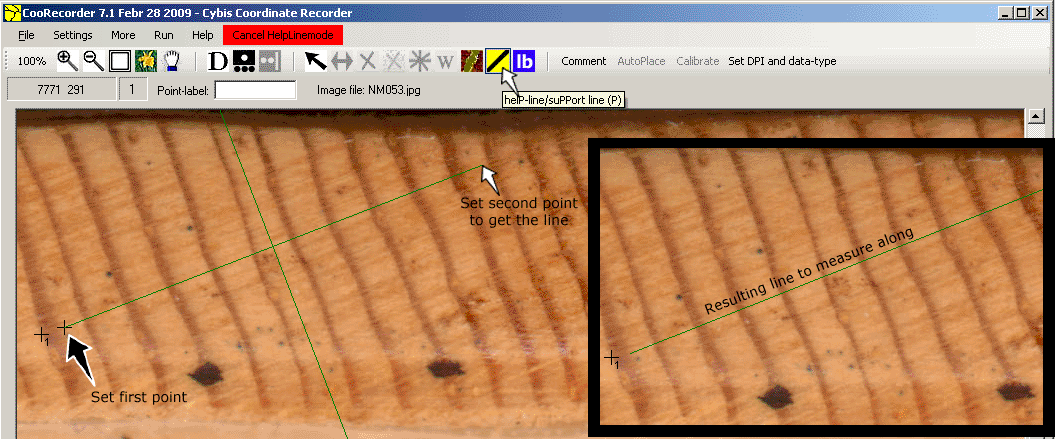
| You may set sort of a ruler/Help line/Support line. You can then measure along that straight line! To make the help line drawn, first click on the help line icon as shown above or press the P key on your keyboard. The icon will then light up as shown below. |
|
When the help line is being set, a perpendicular crossing line is also plotted. When that crossing line is parallel with the tree rings, you have the best position for your line. |
DataH-mode - A "cursor" to help you measure perpendicular across the next ring
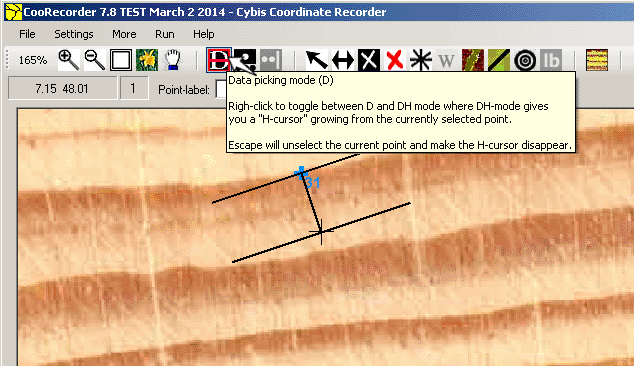
| The "DataH-mode" is available (toggle) by right-click on the D-icon. It will give you a "cursor" with perpendicular help lines growing from a previous already selected point towards the next point to set. |
Basics on measuring tree rings - on changing the measurement directionNote: For information on how to change the measurement direction ("changing the measurement path"), see the section "How to measure at right angles or over a crack". |
|
Recording in CooRecorder aims at saving coordinate pairs for points which you designate by clicking on the image with your mouse.
The framed table with numbers below shows how collected coordinate points will be represented in your final .pos file. The point having index 18 corresponds to the first line of the table. The number of decimals saved can be changed through the menu command Settings/Other settings. |

|
|
| For point number 18, 19 and 20 in this example,we have one point per ring to use for calculating the ring widths between these adjacent points. When we come to point 21, we find that ring damaged, so we need a new starting point for calculating the width of the next ring (21). Therefore, before registering any point on ring 21, we enter "the data group mode" which allows us to register "a group of points" (actually two) on the next ring. We then set our two points 21:1 and 21:2 on ring 21. As we are measuring ring widths and CooRecorder knows that we never need more than two points on a ring - CooRecorder will automatically switch back to "single point per ring" mode after you have set the 21:2 point. |