|
First see that you download a collection of tree ring data from the island of Namdo. This data file will be used for some examples. You will find the file in the ITRDB database as swed302.rwl, but here is a local copy: swed302.rwl To open that file from CDendro: Right-click on the swed302.rwl-link above and select "Save link as" and then save the file where you can find it from CDendro. Be careful not to save the file as type "Text Document" as that will give the file the name swed302.rwl.txt. Instead see that it is saved as type "All files" or ".rwl files" (depends on your browser). |

|
Use either the command "Collections/Open collections from" or "Collections/Open menu for collections/Open Tucson .rwl collection".
Navigate to the swed302.rwl file and open it. |

|
A collection with many members is created out of the swed302.rwl file.
You can sort the members by clicking on the column headers. E.g. click on "EndYear" to sort the collection by EndYear. Click again to change e.g. from ascending to descending order for EndYear. Then click on MemberID to get back to the initial sorting order. Note that you can temporarily reorder the columns for e.g. your documentation: Just drag a column-header towards left or right. When you open the collection, each member is "checked" in its little box to the very left. If you uncheck a member, it will not any longer be part of operations on the collection. The "offset" tells how a member is synchronized relative to the other members. Members with offset=0 have their youngest rings being the youngest rings of the whole collection. E.g. as the collection is dated to 1995, then the member 6680NY with offset=10 has its youngest ring grown in 1985, i.e. that is the "EndYear" of that member. If you double-click on a member it will open in a new "sample-window". In this case we are going to analyze a member named "NMBS05A" and see how it matches towards the rest of the collection. Note: Sorting checked and unchecked members separately. When you have many members unchecked you might want to have your checked members sorted separately at the beginning of the list. This can be achieved by right-clicking on any of the column headers and checking the popup command "Sort checked and unchecked members separately". When you then left-click on a header all the checked members will be sorted as a separate group at the top of the list and the unchecked members at the bottom of the list. |

|
Scroll down the list to find the NMBS05A sample and uncheck it!
Then click on the button "Create Mean value sample". As NMBS05A is unchecked it will not be included in the mean value of the collection. |

|
A mean value sample is now created from your swed302.rwl collection but with NMBS05A excluded from the summation.
The light green curve in the middle of the green curves shows mean values of "deTrended" ring widths for each year. The thinner dark green curves around this mean value curve show the standard deviation found when the mean value curve was calculated. The upper red curves show normalized values with the mean value curve in the middle and standard deviation curves around it. The red numbers along the top of the curve diagram show the number of members used to calculate the mean ring width number for that year.
Note:When you create a mean value sample from a collection, that sample is selected as your "reference" when there is no reference already selected.
|
|
What is deTrended ring widths? As age and good or bad soil influence the ring width growth of a tree, it is reasonable to divide
measured ring widths of a tree with some sort of mean ring width value(s) for that tree to make it possible to compare ring widths
from different trees.
Normally a young tree grows with wider ring widths than an old tree, i.e. if you plot a ring width curve for a tree, that curve - "the growth curve" - is normally highest for the time when tree was young. When calculating the mean value of ring width for a specific year (e.g. 1980) for several trees, then the calculation is normally based on trees which were of different age that very year. The youngest trees have wide ring widths for that year, the oldest quite thin ring widths. Detrending is the mathematical process of compensating for this ring width dependence on tree age and local growth conditions. In this process we divide each years ring width with a value (for that year) picked from a mean ring width value curve created for this tree. A common method is to use a negative exponential curve that has high values for rings grown when the tree was young and low values for rings grown when the tree was old. Other methods calculate a curve that adapts to the overall behaviour of the tree's growth curve. With the curve matching algorithms used in CDendro, detrending will only influence the shape of the calculated mean ring width curve, i.e. the green curves shown in the lower part of the diagrams. When your reference is calculated directly from a collection of measured samples (use the button "Create Mean value sample") then the calculated correlation coefficients in CDendro are not depending on the detrending method used. When the reference is based on mean value ring width files from several regions, then appropriate detrending is necessary for proper crossdating. Normally the use of a negative exponential curve will do the job, though please see also the note on Heavy detrending at the very end of this section. Before you create the mean value sample, you can select the type of detrending you want for this case.
Note: If your members are all taken from the same tree (different radii), then you probably want to select the radio button "No (deTrending for ring width curve)" before you create the mean ring width curve for your tree. |

|
Now, click on the top of the window for your collection, swed302.rwl! (If you cannot see it, click the menu command WindowsList and then click the swed302.rwl line on that list.)
Then double-click on the member NMBS05A. It will open in a new window as shown above. As the sample is already properly crossdated within the collection, it opened "at the right place" in relation to the reference curve. If that had not been the case, then you could have clicked the button "Make corr. analysis" a little bit to the left of the cursor symbol above. After such a correlation analysis, the curve will be repositioned to the best match of the analysis. The black numbers along the bottom of the diagram correspond to the number of stems used to calculate the mean ring widths for the reference. When the sample itself is created out of many stems, there will be another group of red numbers along the top of the diagram. That is of interest when you compare two mean value series and wonder how many stems there are for each ring width value for each of the series. The red numbers 0.60, 0.55 etc show the correlation coefficient for this match for 20 years long blocks (segments). The length of these blocks is set with the "Blocklength" setting at the lower left corner in the picture above. The distance between these blocks is set with the "Blockdistance" setting. |
|
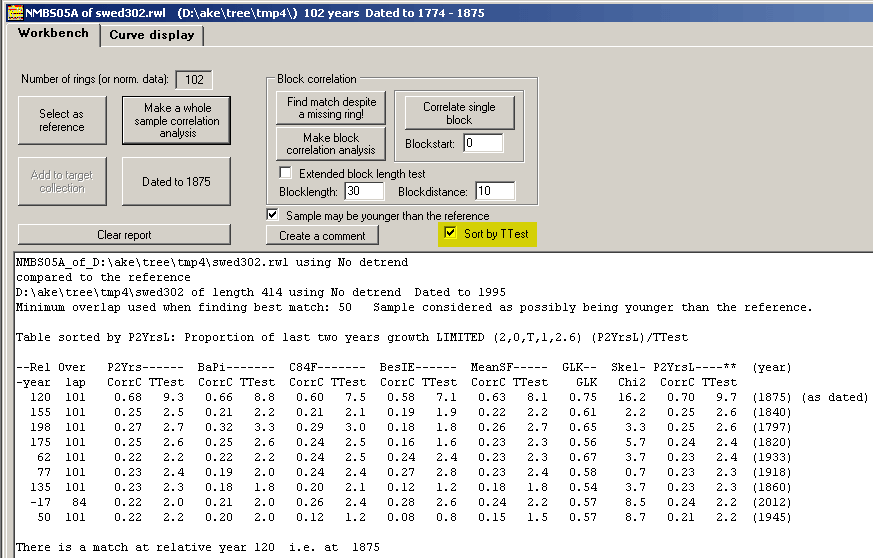
At the Workbench tab you can get a more careful look at the correlation analysis.
The table is here sorted in descending TTest order. You may get it sorted in order of descending correlation coefficient value by unchecking the Sort by TTest checkbox marked yellow above and then click the "Make whole sample correlation" button again. Normally this gives the same result though as TTest values depend on the overlap, a high correlation coefficient value with a reasonably short overlap may not be "top-rated" when sorted according to TTest value. Note: Old versions of CDendro have the "Sort by TTest" checkbox only available at Settings/Options for matching and normalization. |
Showing all correlation values as a graph - The "piled correlation diagram".

| There is a mechanism in CDendro for displaying a graph of all the correlation values calculated. Before you can use this mechanism you have to see that the setting "Enable crossdating quality test functions" is checked! Then click the Show button to make the diagram display as shown below! (With "All" unchecked only the positive correlation values will be shown.) |
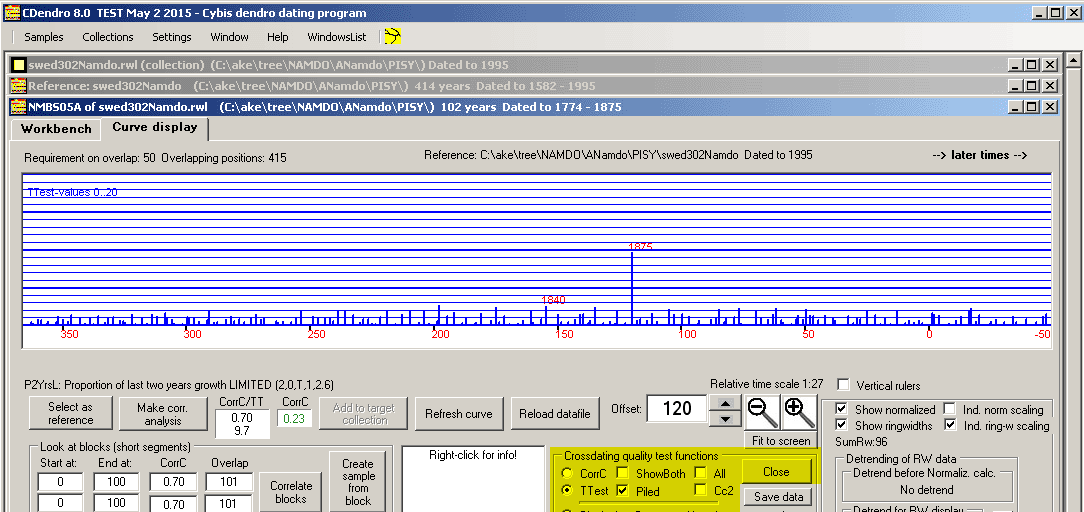
| The best T-value corresponds to offset=120, i.e. to the year 1875 with a T-value of 9.7 - The next best match is at 2.6 at year=1840. This type of diagram is very useful to graphically demonstrate the high quality of a crossdating when there is only one outstanding and properly discriminated match! |
Heavy detrending

| Since October 2013, the Heavy detrend method is set as default for detrendning within new versions of CDendro. This is to better adapt to the fact that some young trees start to grow in a depressed environment with much bigger trees in their neighbourhood. This results in very thin ring widths from the time when the tree is young. Not until the tree has grown mature (=high enough) or surrounding trees are removed, then the tree is able to grow wide rings. A negative exponential curve will not fit to such a growth. In contrast to this, the Heavy detrend curve shown in the diagram above will adapt to the overall growth rate and produce a reasonably good detrended growth curve. |